
The control panel for managed AI
Run your customers' AI apps with a clear owner for each one.
When you run AI apps for customers, you need two answers fast: who owns this app, and what needs attention. AI Admin Panel gives you both, for every customer, on servers you control.
Public install opens soon. The free edition covers up to three customers and five services.
§ 01
A customer's AI app stops. Who owns it?
The call comes in: a customer's AI assistant has stopped answering. Before anyone can fix it, your team needs to know two things.
Who set this app up, and for which customer? And is the problem in the app, the server or the last change?
Often the answers sit in one person's head, or on a server nobody has opened in months. The customer waits while your team looks.
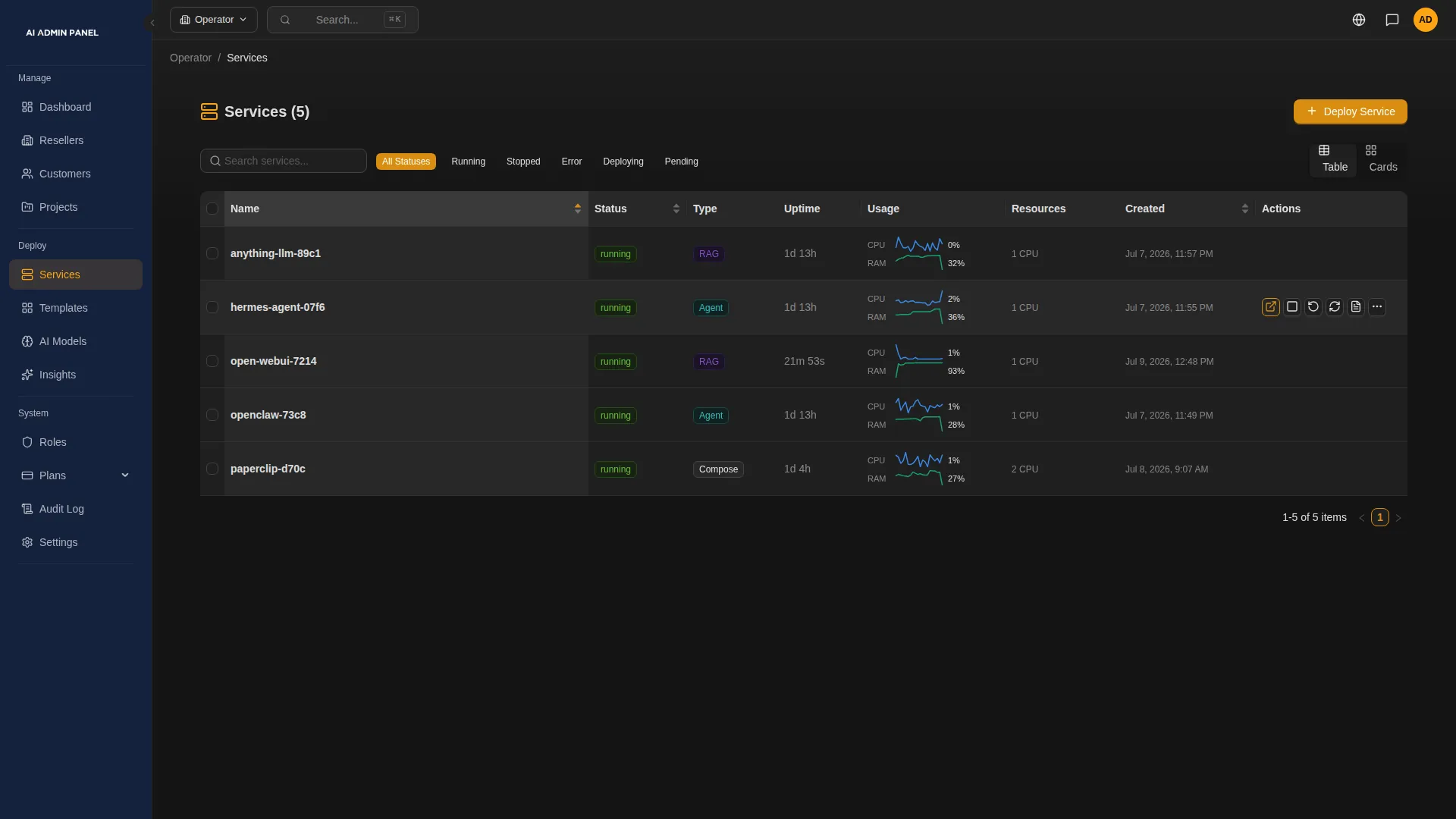
AI Admin Panel keeps every customer's apps in one panel, each under its customer's account. The panel flags what needs attention, on the server and in each app.
§ 02
Your rules
You want customers to handle the small things, and to reach only the settings you're ready to support.
So you decide what each customer may do. Optional features, such as API keys or a customer's own AI key, start switched off. You switch them on for all customers or for one. In the Web Host edition, plans and roles also set each customer's portal actions.
For apps that support it, you choose the AI route when you deploy. It can be the customer's own key, your metered key with a monthly budget, or a local model. You and the customer can see what the metered key has spent. Other apps take an AI key in the deploy form or set their AI provider inside the app.
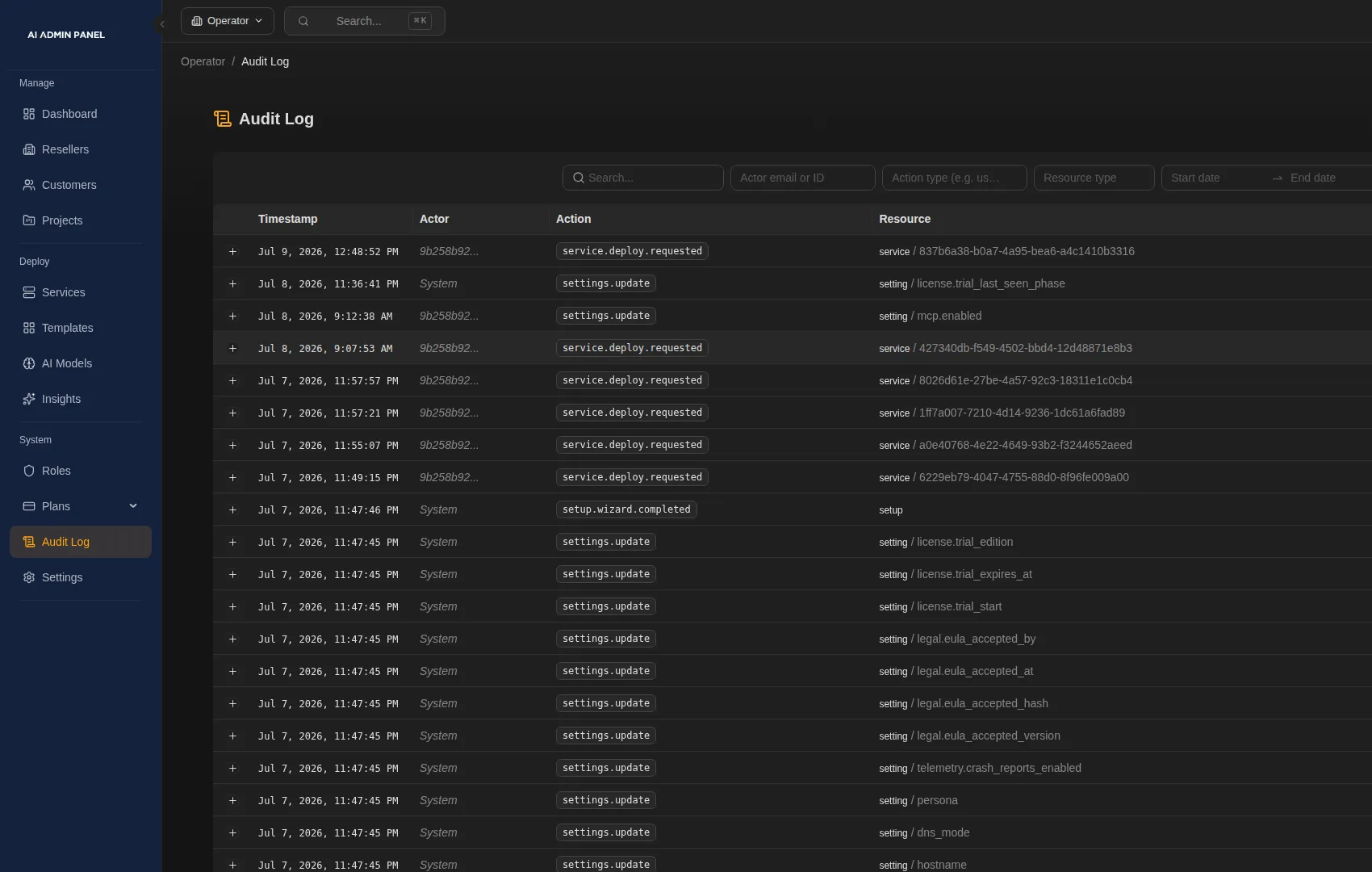
When a customer asks what changed, the audit log shows who did what in the panel, and when.
Caution
If an app uses an outside AI service, its requests leave your server.
§ 03
Your customers
You want each customer's setup written down before anyone has to ask who owns it.
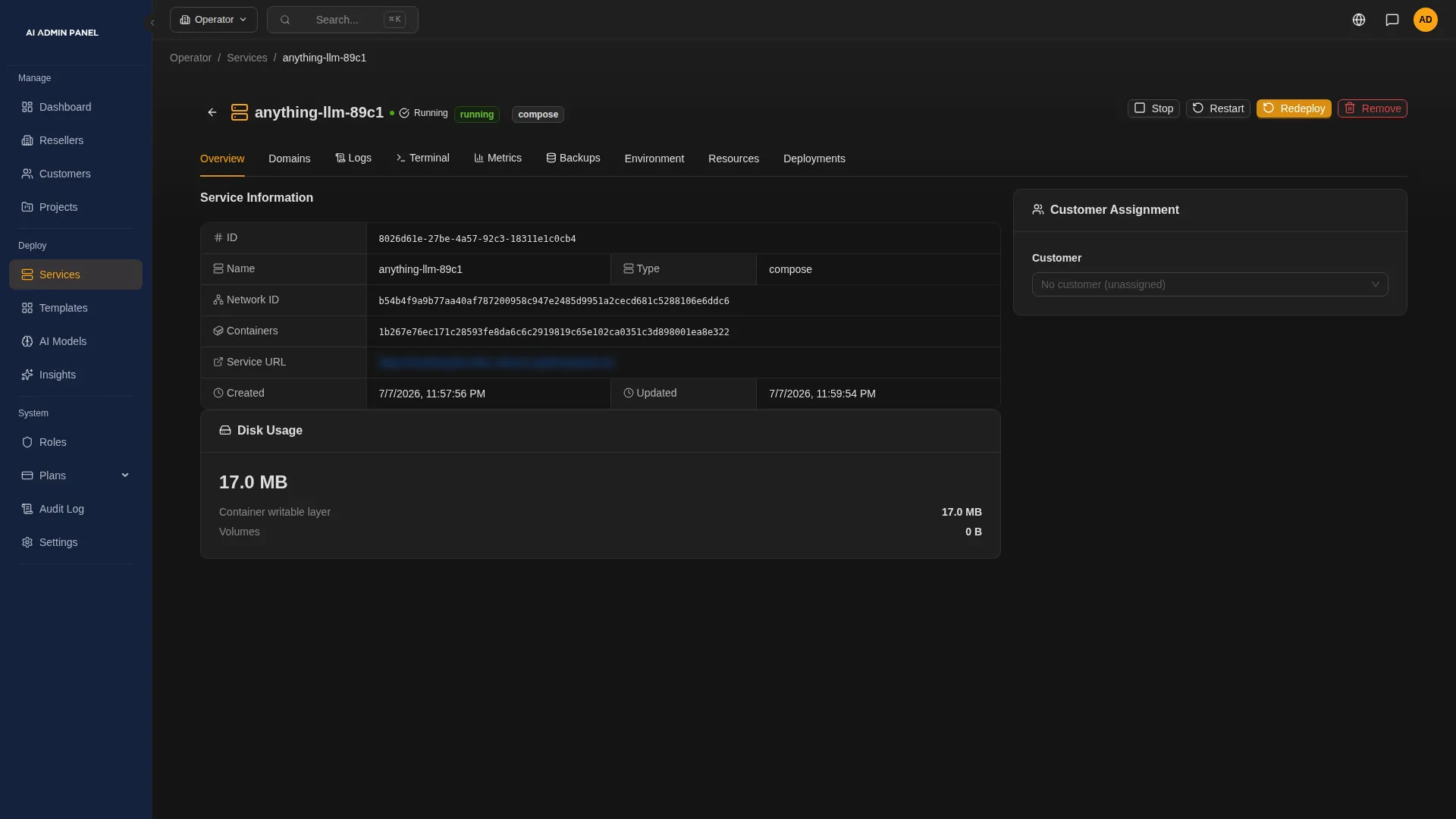
Create the customer in the same step as their first app. The app has a named owner from the start, and the customer's first sign-in comes with it. Then invite the rest of their team, one sign-in per person. If a welcome email gets lost, send it again.
Customers sign in to their own portal and see only their own apps. Where you allow it, they check an app, read its logs and restart it themselves.
When a customer calls, staff you allow can view the portal as that customer. Nobody has to ask for the customer's password.
Note
Sign-in emails need your mail settings in place. Check with the customer that they arrived.
§ 04
Your servers
You'd rather hear about a problem from the panel than from your customer.
AI Admin Panel runs on a Linux server you control, so your customers' apps run where you decide.
The panel flags what needs attention, on the server and in each app. Insights watches the server's disk, memory and CPU, and says in one sentence whether anything needs you. On the Services page, the Needs attention filter lists the apps that have failed or are unhealthy. Open one to read its live logs, its metrics and its deploy history.
Alerts reach your team by email, Slack, Discord or Telegram, and you choose which kinds go where. When an app fails its health check, the panel restarts it a limited number of times, then alerts your team. Apps someone stopped on purpose stay stopped. You switch each automatic fix on or off. The restart fix is on by default.
Note
Beyond the supported automatic fixes, the panel points to what needs attention, and your team decides what to do.
§ 05
A day on the service desk
Here is one way a customer's AI app runs, from the first day to the first problem.
- Your team
Onboard with an owner.
You create the customer as you deploy their app. The app has a named owner, and the customer's team gets their sign-ins.
- The customer
The customer helps themselves.
They sign in to their portal and see their own apps. Where you allow it, they check an app or restart it.
- Your team
Something needs attention.
An app fails its health check. The panel restarts it a limited number of times, then alerts your team.
- Your team
Read the logs.
Open the app from the Needs attention filter. Its logs, metrics and deploy history are in one place. Then decide: is it the app, the server or the last change?
- Your team
Take a permitted action.
Restart, stop or roll back the app, as your permissions allow. Then check the audit log and call the customer with what you found.
Note
This is one way to work, and your own process decides the rest. Before you promise a customer a recovery, check what the panel can restore for their app.
§ 06
Backups and recovery
The worst time to learn what a backup covers is in the middle of an outage.
So the panel tells you before you need it. Each backup shows whether the panel can restore it, and if not, the reason.
What backups capture. The panel backs up PostgreSQL databases, and the stored files of apps that have no database. Run a backup by hand or on a schedule, to an S3-compatible bucket you choose. Backups to S3 need Power User or Web Host. Other database engines are refused. Backing up an app's files stops the app until the backup is done.
What the panel restores in version 2.17.0. Full restore covers one setup: a small Directus app on PostgreSQL 16 that is not assigned to a customer. Its data can be up to 256 MiB. The panel refuses apps that belong to a customer, so full restore of customer apps is not part of this version. Database and file backups are kept as stored copies, with no restore in the panel. Your team can put a database backup back by hand.
When restore is offered. The panel checks the backup and saves the current data as a safety snapshot first. The app is offline while it restores. The panel reports success only after it has checked the result.
Rollback keeps today's data. If an update goes wrong, roll the app back to a saved version. Rolling back changes the app's version and leaves its data as it is, so older data comes back only from a backup. Apps built from a Compose file in their Git repository can't be rolled back.
Full restore, for the one supported setup
Check the setup.
The panel looks at the app's owner, its storage and its database.
Take a full snapshot.
You take it by hand, and it captures the database and the files together.
Check that it can restore.
A platform administrator starts the restore, and the panel checks the backup first.
Save a safety snapshot.
The current data is saved before anything changes.
Restore and check.
The panel restores the snapshot, then checks the result before it reports success.
Database and file backups
Back up the database or the files.
You run it by hand or on a schedule you set.
Keep the stored copy.
It stays in your bucket, with no restore in the panel.
Caution
Test recovery for each customer's app before you promise it.
§ 07
Which edition fits an MSP
| Free | is for trying it, with up to three customers and five services. |
|---|---|
| Power User | removes those limits and adds custom domains and S3 backup. It suits a small team that serves every customer directly. |
| Web Host | adds organisations, roles, projects, resource and service plans, and resellers. Choose it when your team needs roles, or plans that set each customer's limits and portal actions. |
Each paid edition comes with a 14-day trial.
Note
Each installation is its own panel, with its own customers and apps.
§ 08
Questions MSPs ask
Does it include our service levels and billing?
No. Your service levels, support hours and invoices stay yours. In the Web Host edition, the panel keeps each customer's plan next to a reference to your billing record. On your metered AI key, you see what each customer has spent against their budget.
Will it fix every incident?
No. Autofix handles a set of supported problems, such as restarting an app that fails its health check. You switch each fix on or off. Everything else goes to your team, with the logs and metrics to start from. Staffing, escalation and the call to the customer stay with you.
Can it restore every customer app?
No. In version 2.17.0, full restore covers one setup: a small Directus app on PostgreSQL 16 with no customer assigned. Its data can be up to 256 MiB. For every other backup, the panel says why it won't restore it. Rolling back an app keeps today's data. We're working on restore for more kinds of app, and we'll tell you when it ships.
Can customers administer everything?
No. In the panel, each customer gets the actions their plan and role allow, for their own apps. Server-level tools, backups and restore stay with your team. Inside each app, that app's own settings apply.
Where do our customers' AI requests go?
For apps that support it, you choose the route when you deploy. With an outside provider, the app's AI requests go to that provider. A local model keeps them on your server. Other apps take an AI key in the deploy form or set their AI provider inside the app, so check each one. The panel doesn't pass your own AI keys to customer apps.